
How to install the app
Your gym's app is still being prepared for Google Play, which is why you cannot find it by searching. Before you can install it, your Google account has to be added to a list. It takes two minutes — here is how.
Two things, before anything else
- Tell us which gym you train at, too. Every gym has its own app and its own list — without the gym's name we do not know where to add you.
- Do not search for the app in the Play Store — you will not find it. While it is being prepared it does not appear in search at all. The only way to install it is a link we send you.
Step by step
Send us your Google account email and your gym's name, and we will send you the install link.
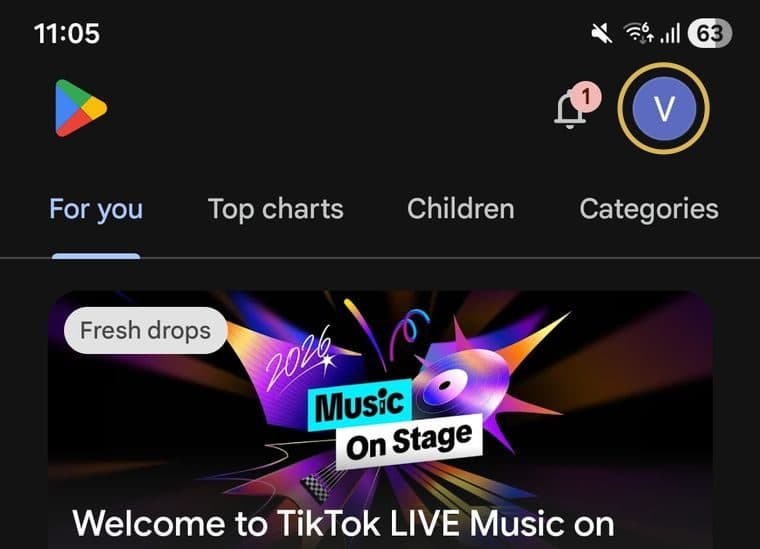
Open Play Store on your phone and tap your picture or initial in the top right corner.
Your Google account email is shown at the top. That is the address to send us — not any other one you use.
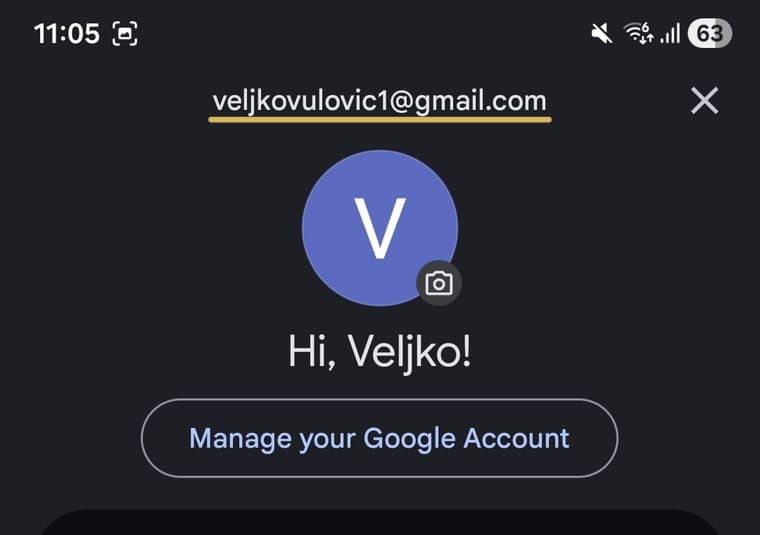
Send us that address along with your gym's name. On Instagram, WhatsApp, Viber or by email — details are below. Copy the address exactly, letter for letter.
Wait for our reply, then open the link we send. Open it on the same phone. Tap Become a tester — that is just what Google calls the button, you will not be testing anything.
Install the app. A Play Store link appears on that same page. Install from there as you would any other app. Once it is installed, open it and create your account.
Send us your email address here
Get in touch with us directly, not your gym. Include your gym's name and your Google account email. We usually reply the same day.
- Instagrambox_hq_platform
- WhatsApp / Viber+382 69 220 077
- Emailveljkovulovic1@gmail.com
If you see “Item not found”
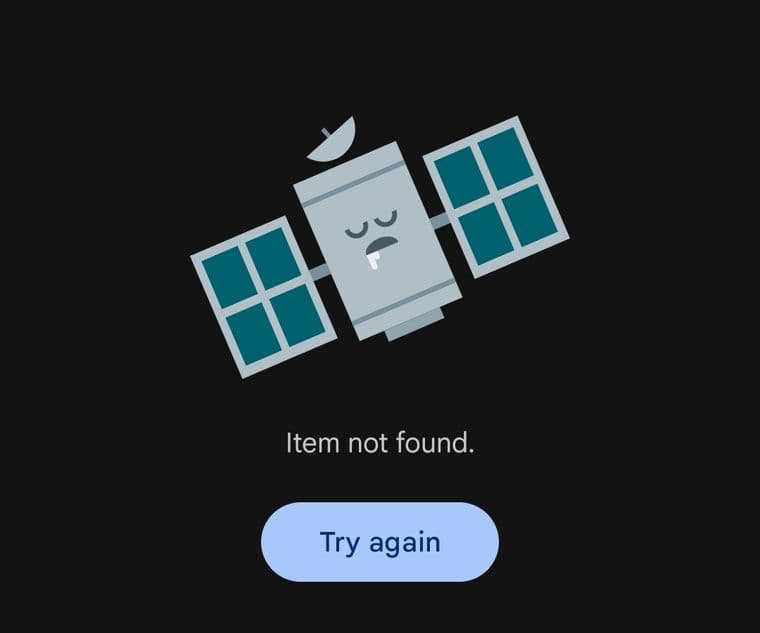
This is the most common problem and it is easy to fix. It means your address has not been added to the list yet, or you opened the link on a phone signed in with a different Google account.
Check which account is signed into your Play Store (step one above) and send us exactly that address. Once we add you, open the link again.
Keep the app on your phone
The app has to stay installed for at least 14 days before Google will approve it for release. If you delete it sooner, the count starts over — for every member, not just for you.
After registering you wait for approval
When you register in the app and try to sign in, you will see this message:
Your account is pending approval. Please wait for an administrator to activate your account.
The app is working correctly. Your gym approves the account, not us. Let them know you have registered — they will approve you and set up your membership, then you sign in with the same email and password.
Common questions
Why do you need my gym's name?
Every gym has its own app and its own list of users. Without the gym's name we do not know which list to add your address to, so we cannot send you the right link.
I am searching the Play Store and cannot find the app.
That is expected for now. The app does not appear in search while it is being prepared — install it only through the link we send you.
I opened the link but it says “Item not found”.
Your address is not on the list yet, or you opened the link from an account you did not send us. Check which Google account is signed into your Play Store and get in touch.
I created an account but cannot sign in.
Your account is waiting for your gym to approve it. Ask the staff to activate you and set up your membership.
Do I have to change my phone or Google account?
No. Same phone, same Google account — just do not delete the app for the first 14 days.
The registration form will not accept my password.
A password needs at least 8 characters, at least one uppercase letter, at least one lowercase letter and at least one digit. Until all four are met, the button stays disabled.
I have an iPhone — does this apply to me?
No. On iPhone the app is already in the App Store — just search for your gym's name and install it normally. These instructions are for Android only.